Online Degrees
Why earn your degree online at UNC Greensboro?
UNC Greensboro’s online degree programs allow students of any age the flexibility to earn their degree on their own schedule. Our online programs are consistently recognized for academic excellence and affordability, from best online to best bachelor’s and master’s programs, reflecting our ongoing commitment to student success. Whether you’re earning your first undergraduate degree or looking to advance your career with a graduate degree or certificate, our world-class faculty and accredited online curriculums will help you achieve your goals, with all of the same support as our on-campus students.
Undergraduate Programs
Graduate Programs
Graduate Certificates
News Feed

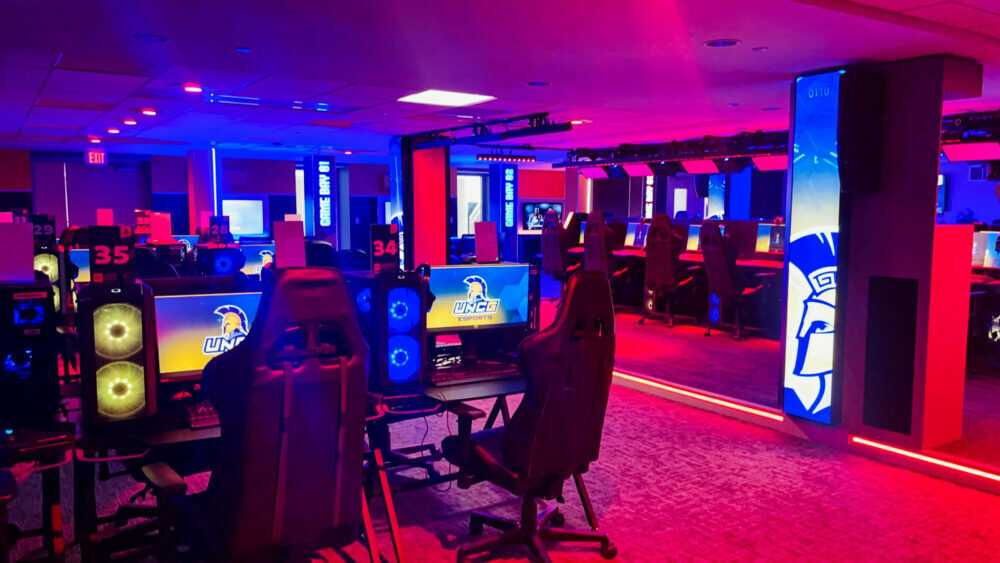
Explore Esports in New Online Courses
Esports is a $1 billion industry that offers compelling career opportunities in a variety of fields. Develop the skills you need to launch a career in esports with the online Esports Ecosystems: Past, Present, and Beyond Gaming and Esports Athletic Content and Viewer Engagement courses.

Accessibility Resources & Services
UNCG believes that every student has the capability to be successful. The Office of Accessibility Resources and Services (OARS) provides, coordinates, and advocates for services which enables students with disabilities to receive equal access to a college education and to all aspects of university life. Academic growth, disability management and self-advocacy skills for students are supported and enhanced.
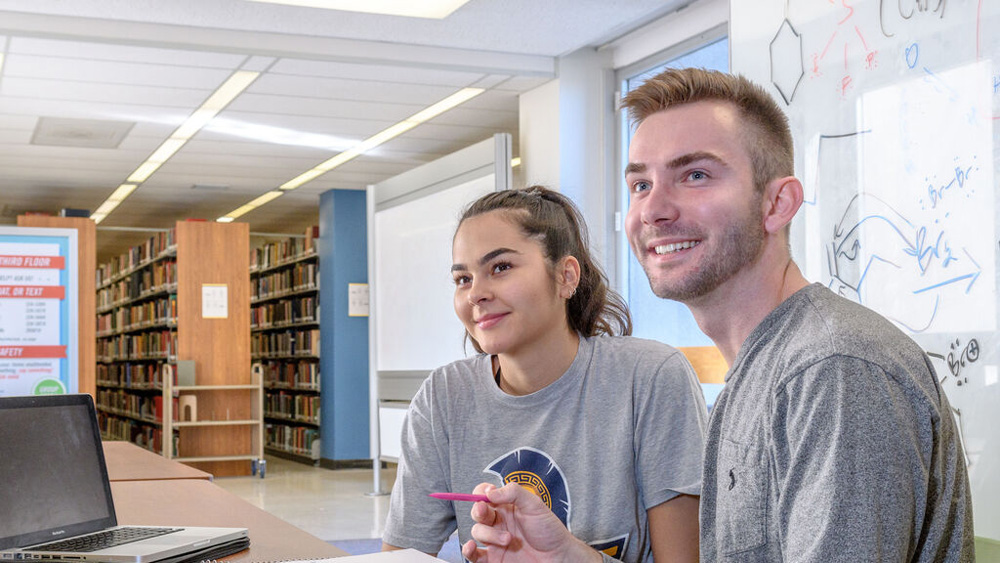
University Libraries
The University Libraries is the crossroads of knowledge at UNCG – at the center of teaching, learning, and research. We offer students, faculty, staff, and the community a wide range of resources, expertise, and technology, along with an unwavering commitment to keep pace with change.
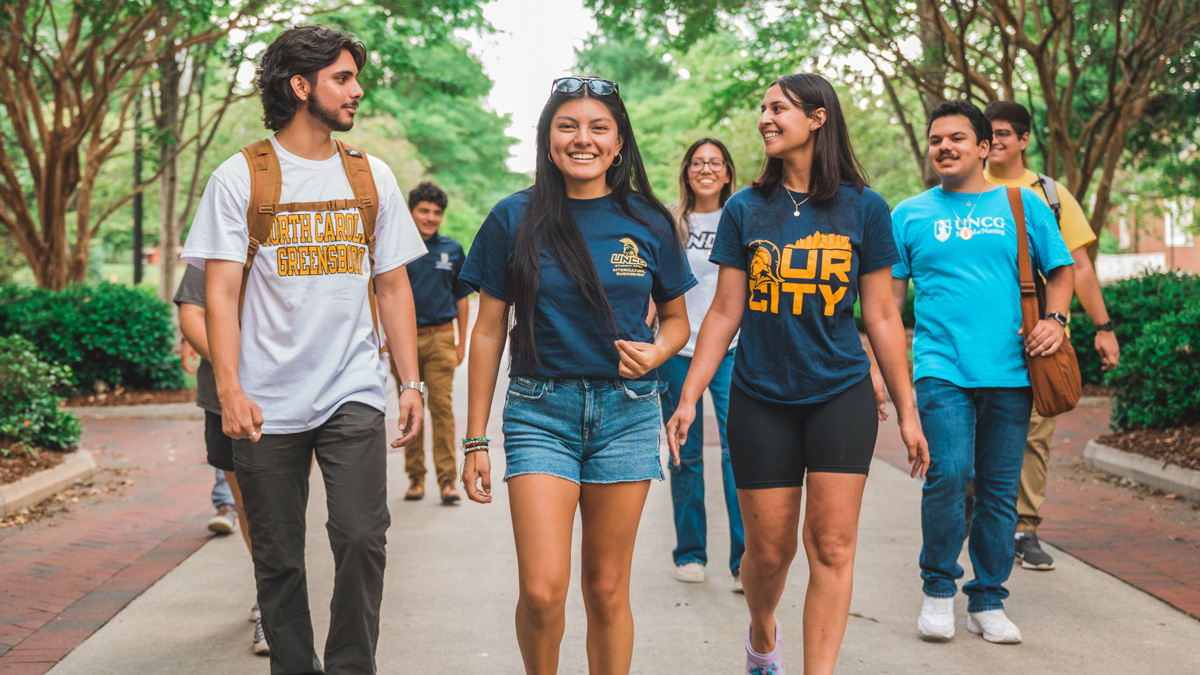
Minerva’s Academic Curriculum (MAC)
The MAC program emphasizes 11 foundational competencies integrated into your major, fostering transferable skills for academics, career, and personal growth, while encouraging curiosity and broad knowledge acquisition.